In this article, we’ll walk through how to manage student access to the full version of Story Architect. You’ll learn how to manage student accounts and organize them into groups, allowing students to work with materials prepared by the instructor specifically for their class.
Getting started
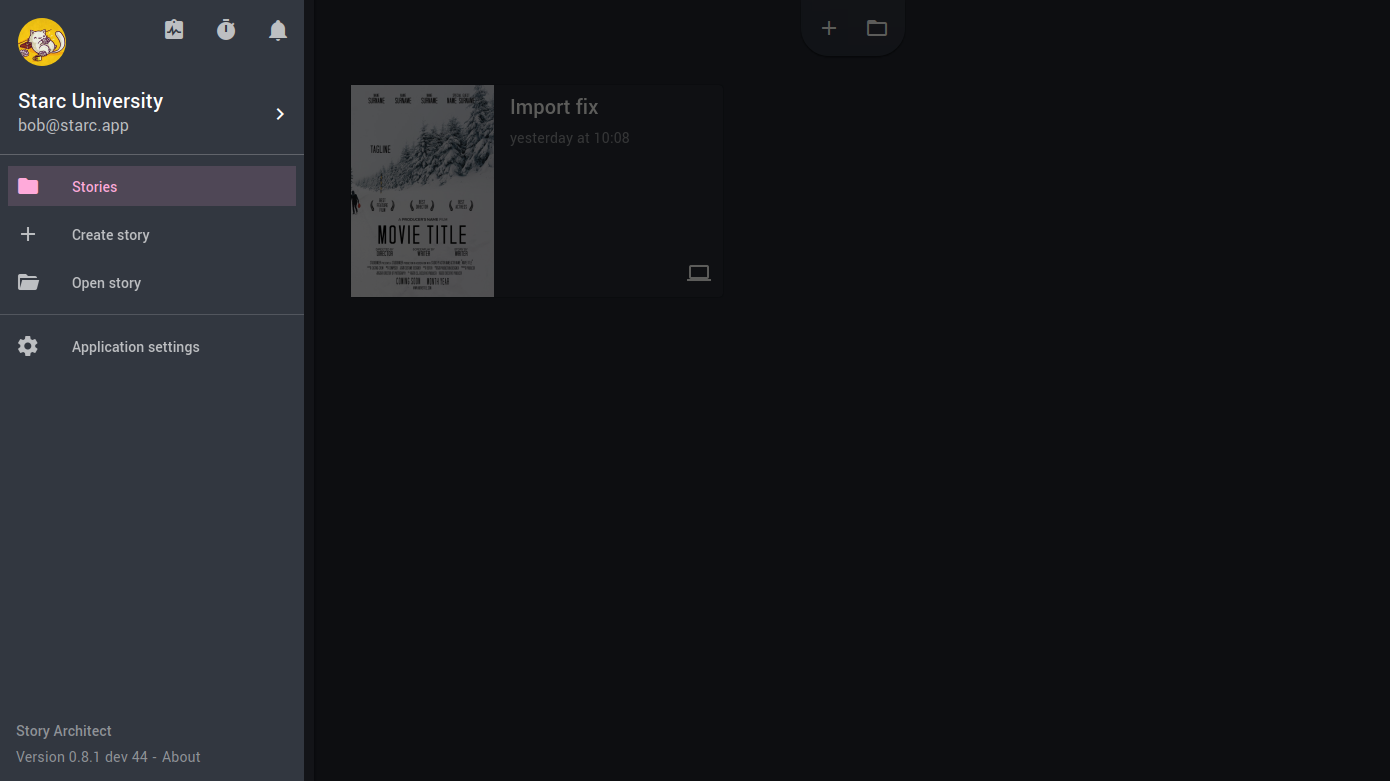
Once your educational institution’s administrator account has been set up, log in to the application and open your Account Dashboard. You can do this via the menu (Menu → Sign in) or by clicking on your account area at the top of the slide-out menu.
Administrator account settings
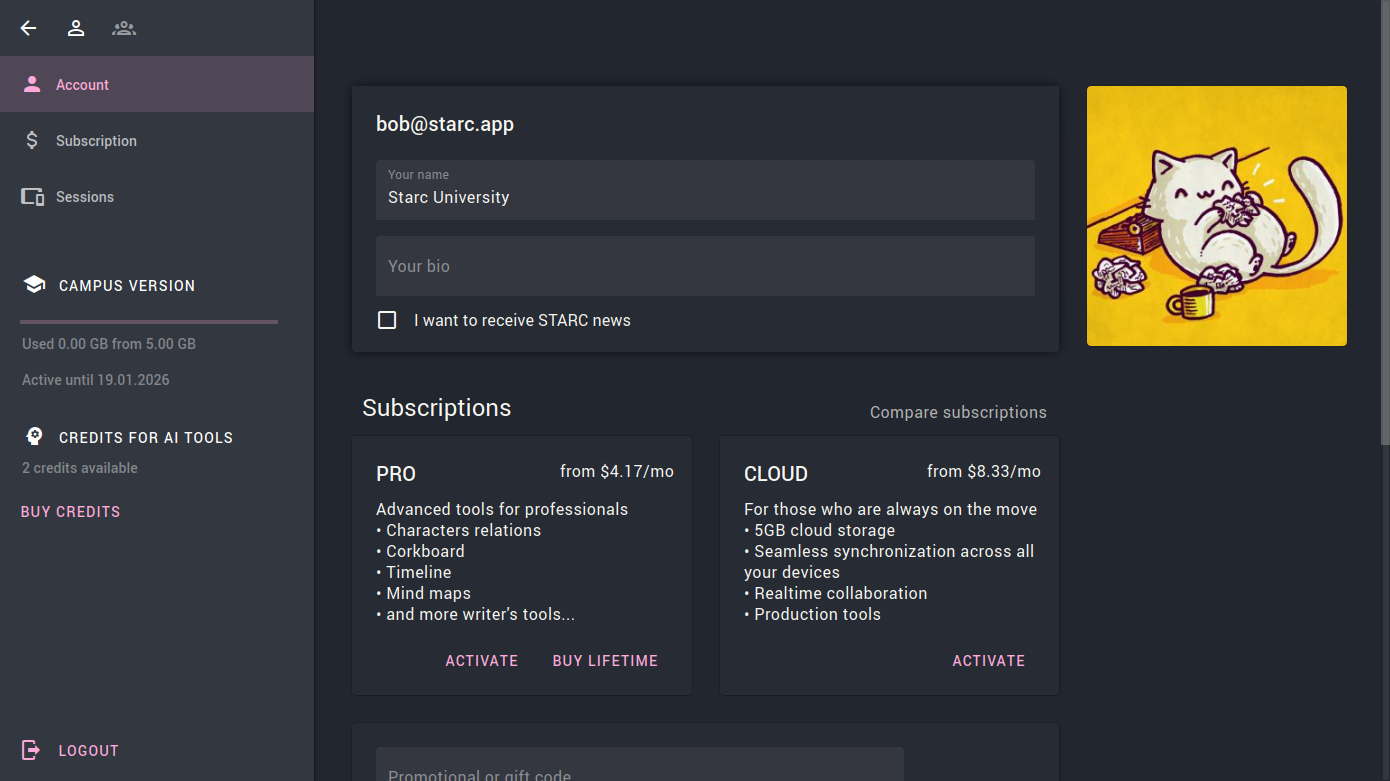
On the administrator account page, you’ll see your active subscription and its expiration date in the information panel on the left.
On the right side, you’ll find account settings where you can:
- Change the account name
- Add a description
- Upload an avatar, such as your institution’s logo
Managing student accounts with teams
To manage student accounts, go to the Team Management section by clicking the people icon in the top-left corner of the application.
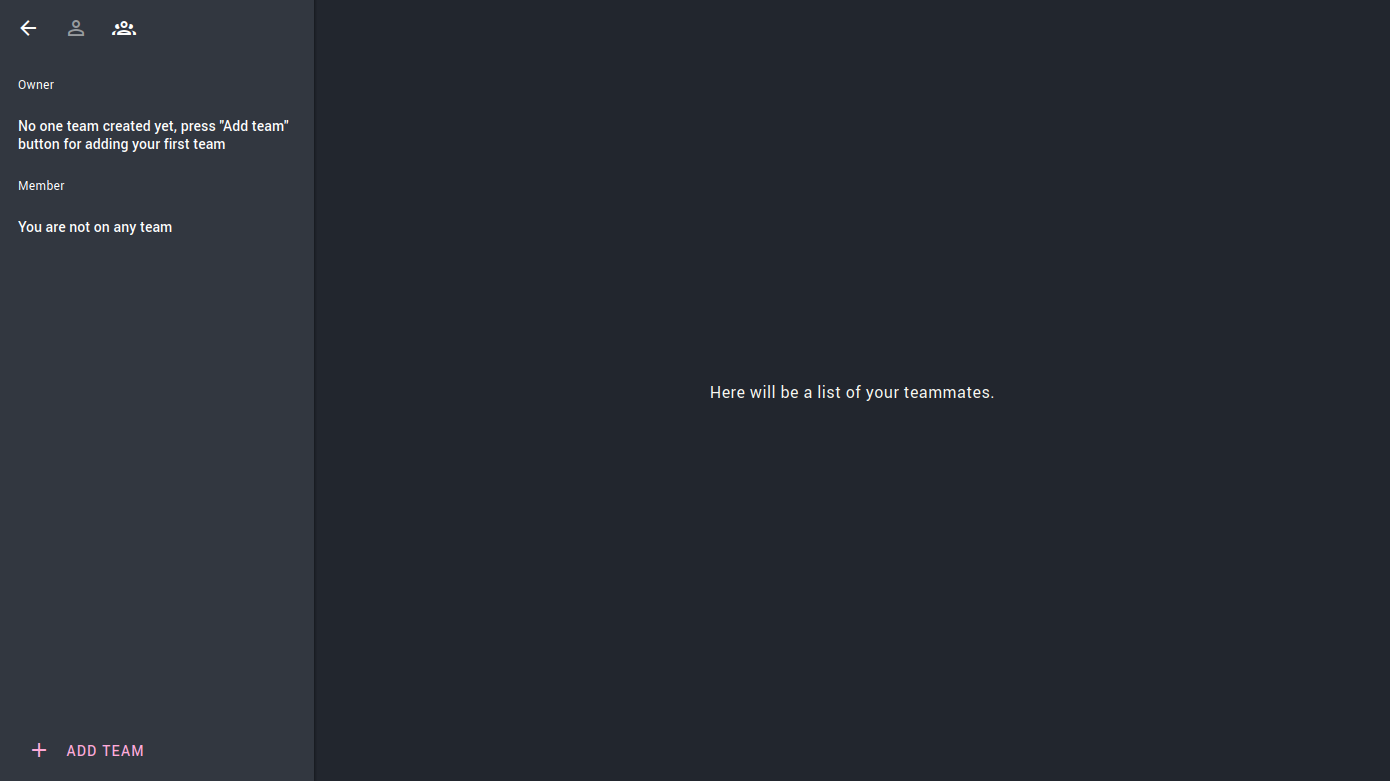
On this page, you can create and manage teams and their members. The team concept is simple: each student group (for example, a class or course) is represented by a separate team, and individual student accounts are added to that team.
If needed, you can also create just one team and include all student accounts in it.
Creating a team
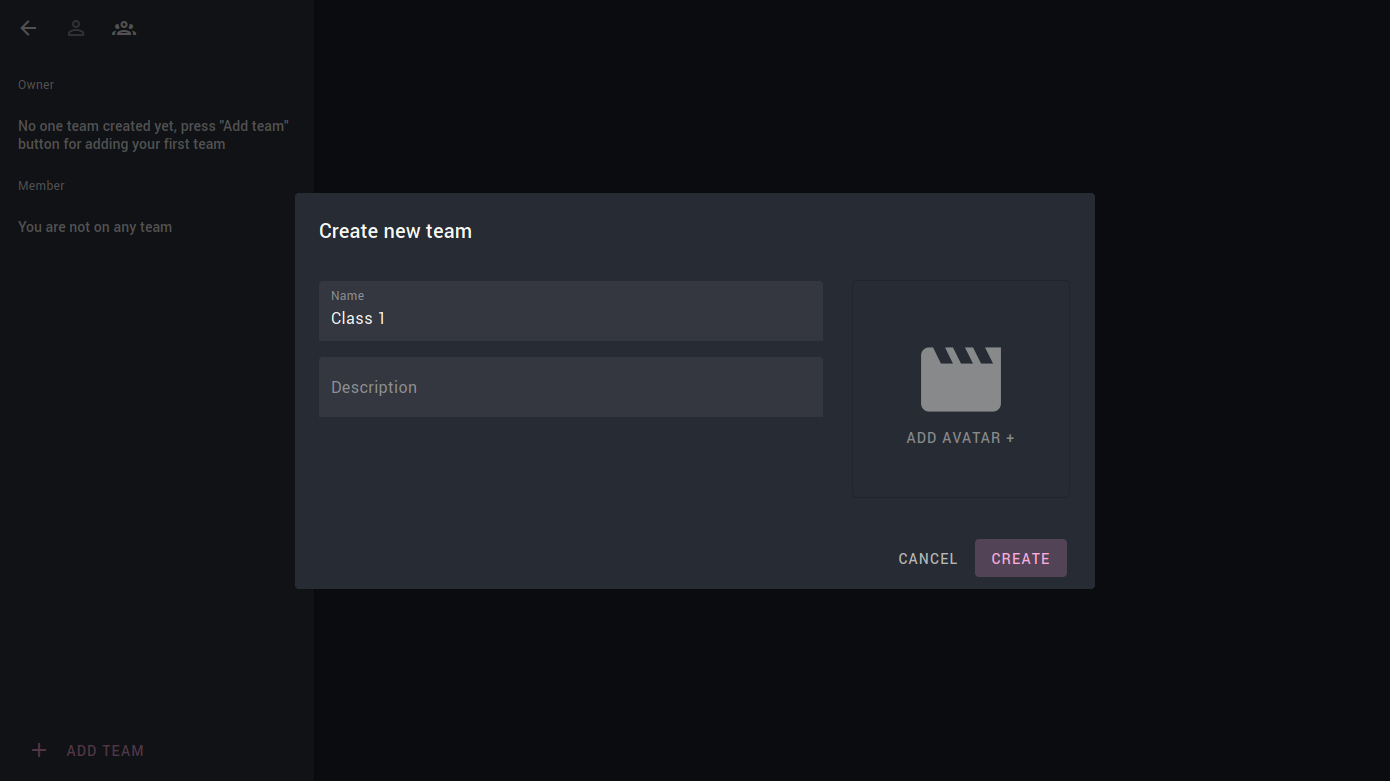
The Add Team button is located at the bottom of the left-hand panel. When you click it, you’ll be able to:
- Set a team name
- Add a description
- Upload a team avatar
Adding students to a team
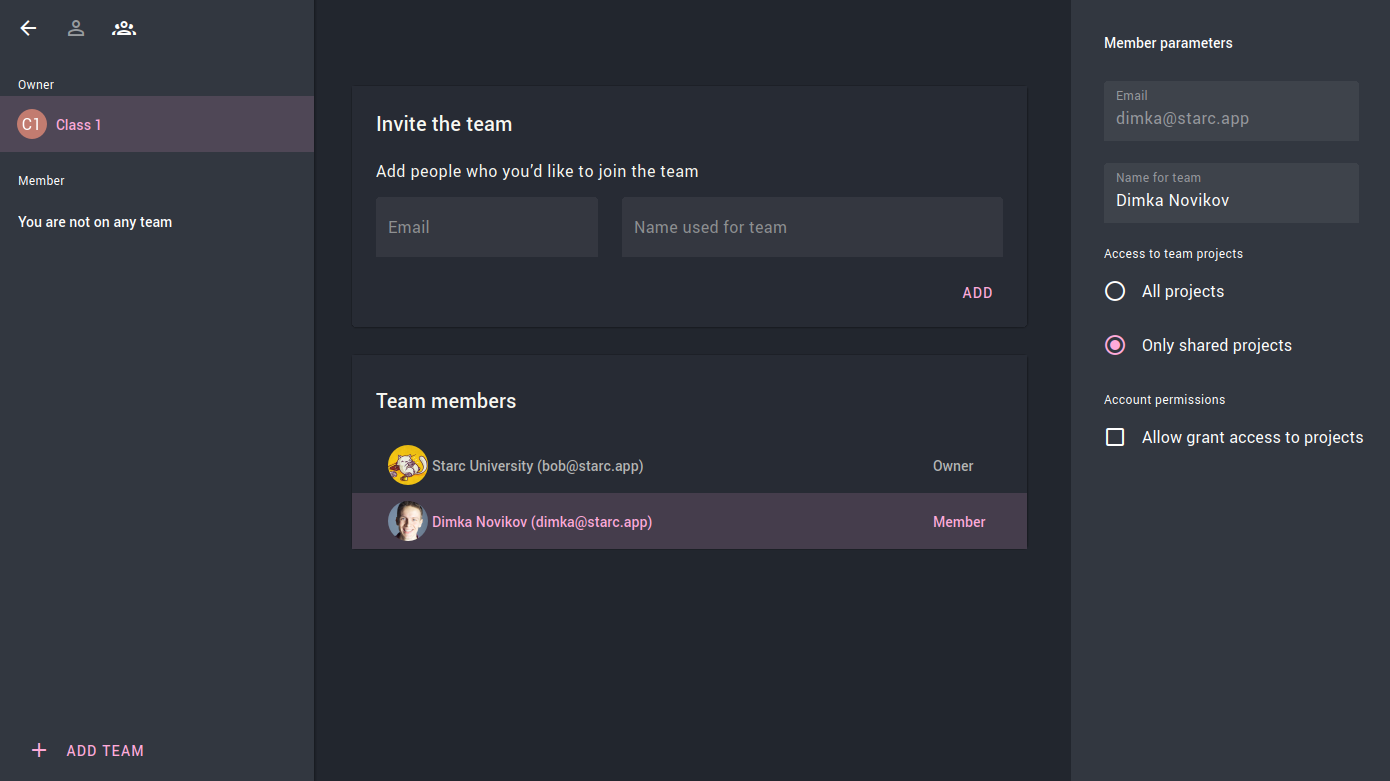
After creating a team, you’ll be able to add participants (student accounts) to it.
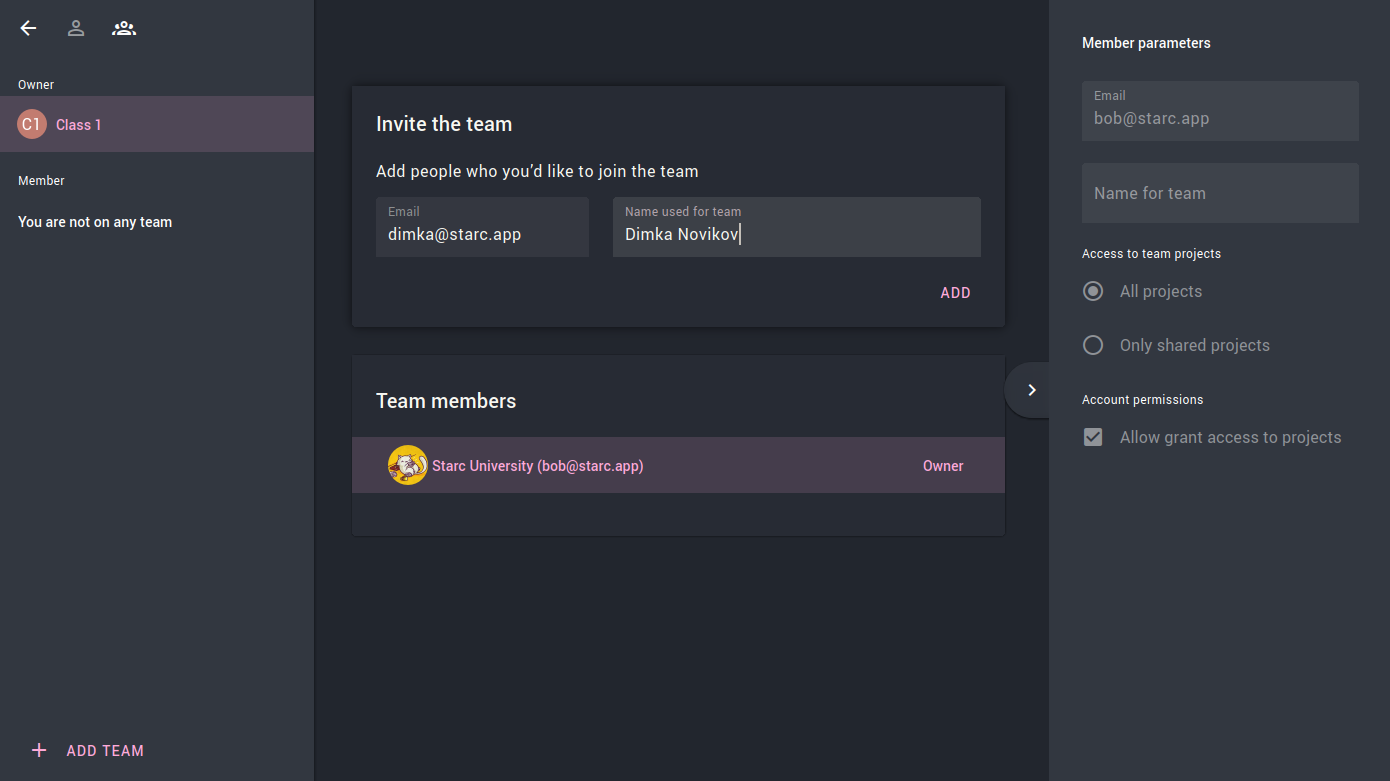
For each participant, only an email address is required.
Optionally, you can also specify:
- Name (If no name is provided, the name set by the account owner in their personal profile will be used.)
- Whether the participant should have access to all projects within the team
- Whether the participant can share team projects with other accounts
Subscription access for students
As soon as a participant is added to a team, they automatically receive access to the CLOUD subscription within Story Architect. This gives them full access to all features of the application, without limitations.
The subscription duration for students is the same as the administrator account’s subscription period.
Creating shared projects for a team
If needed, you can create a shared project for a team that contains learning materials.
To do this, the administrator simply creates a new project and selects which team the project belongs to during creation.
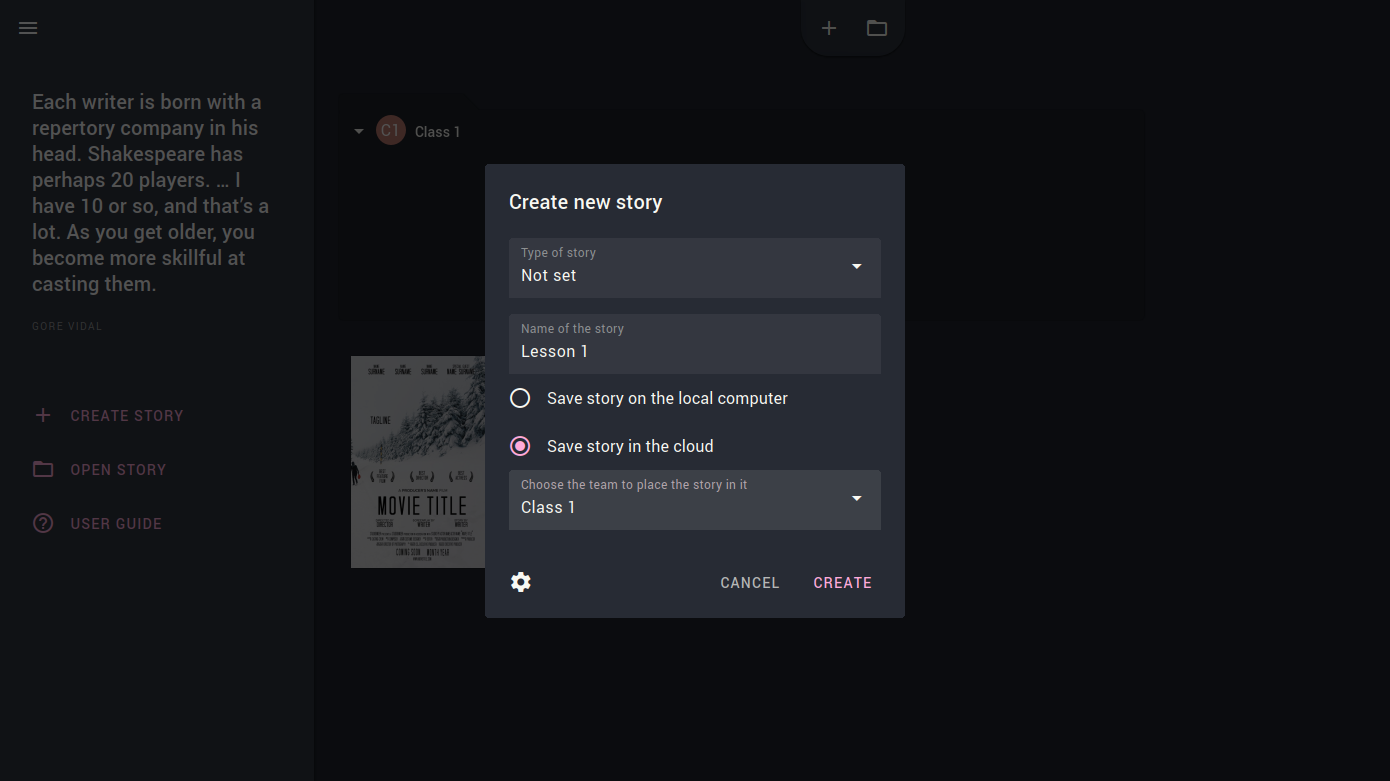
After that:
- All team members who are set to receive access to all team projects will automatically get access to the new project
- Alternatively, the administrator can manually configure access rights for specific students using the standard project permission settings